
 Valid for:
- N670
- N870
Here we describe how to configure the Gigaset N670/N870/N870E to enable the CrewPTT feature.
We assume that it is installed by an qualified technician who have the knowledge about the Gigaset DECT system.
CrewPTT
Enhancing In-Store Collaboration with a DECT Push-to-Talk Solution
Delivering exceptional customer service and operational efficiency in today’s fast‑paced retail environment demands seamless, real‑time communication. Our DECT CrewPTT solution—comprising rugged handsets, headsets, intuitive software, and expert integration—empowers store teams to connect instantly, work smarter, and enhance safety, all while driving substantial cost savings.
Streamlined Operations and Cost Savings
By enabling associates to communicate hands‑free across the entire sales floor, our CrewPTT system significantly reduces unnecessary foot traffic. Eliminating walking distances/time per colleague each day translates to huge annual savings per store—funds that can be reinvested in customer experience initiatives or staff development. Whether conducting stock checks, responding to self‑checkout alerts, or coordinating price checks, teams stay focused on high‑value tasks rather than logistics.
Accelerated Customer Response
Equipped with one versatile device, staff can talk, listen, and act from anywhere in the store. Voice alerts for low stock, system notifications, or colleague requests are delivered instantly through the headset, empowering associates to assist customers three times faster. From handling till enquiries to advising on product availability, teams maintain a continuous flow of information, ensuring shoppers enjoy prompt, knowledgeable service.
Unified Device for Communication and Training
Our DECT handset/headset is more than a walkie‑talkie—it’s a multi‑functional tool designed for retail. In addition to CrewPTT calls, associates can receive real‑time voice prompts for stock replenishment, price overrides, or safety alerts. New hires benefit from on‑the‑job coaching: trainers can guide remotely, providing step‑by‑step instructions without leaving the sales floor. This “learn‑as‑you‑serve” approach accelerates ramp‑up times and maintains service standards.
Enhanced Security and Team Safety
Integrating seamlessly with existing security systems (AML), the CrewPTT solution delivers immediate, discreet alerts when incidents occur. Rapid coordination reduces theft incidents, while associates report feeling safer—knowing backup is just a button press away. Whether facing a shoplifting event or managing an emergency, store teams can mobilize swiftly, keeping both customers and colleagues secure.
Conclusion
Our DECT CrewPTT solution transforms in‑store communication—driving efficiency, boosting customer satisfaction, and fortifying security. By uniting hardware, software, and integration expertise, we enable retailers to operate leaner, serve customers faster, and create a safer shopping environment. Empower your team with instant, reliable voice connectivity and experience the future of retail collaboration today.
Valid for N670 / N870 / N870E but not supported by N610. Software 2.xx or higher is needed.
1. Feature set
2. Installation and Configuration
Installation of the DECT system
Install the DECT system conform the provided training/documentation/wiki.
Software
Upgrade your DECT system with the software ... or higher.
Upgrade your DECT handsets (if required) with the software ... or higher.
Configure your CrewPTT groups
Open the DECT system web-interface: Go to SETTINGS - CrewPTT
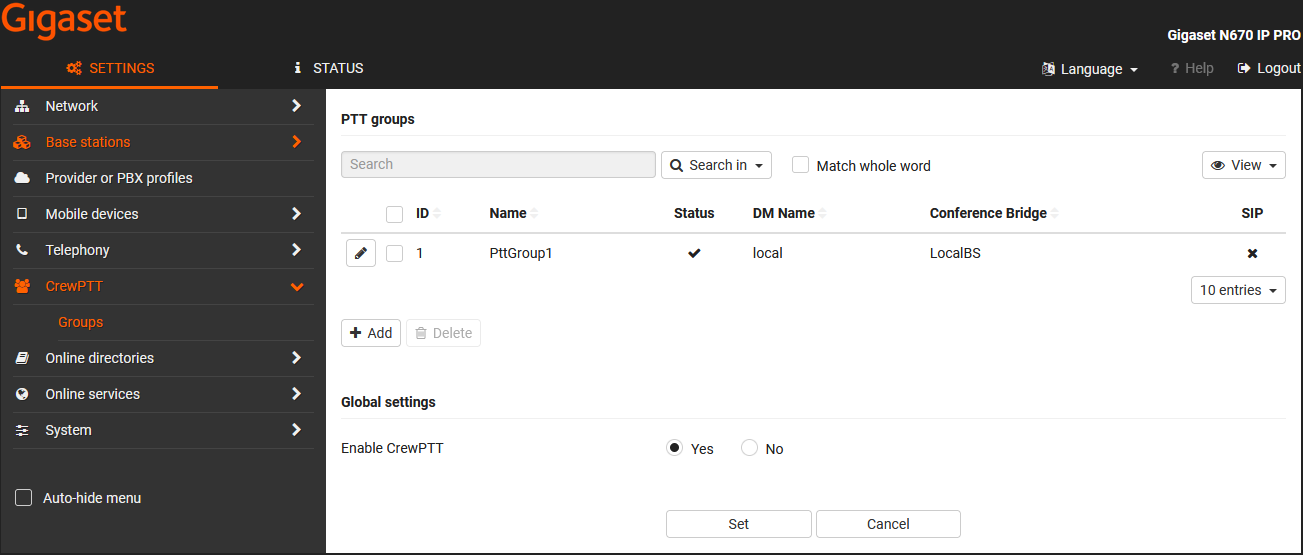
Click on  to edit or
  a new group.
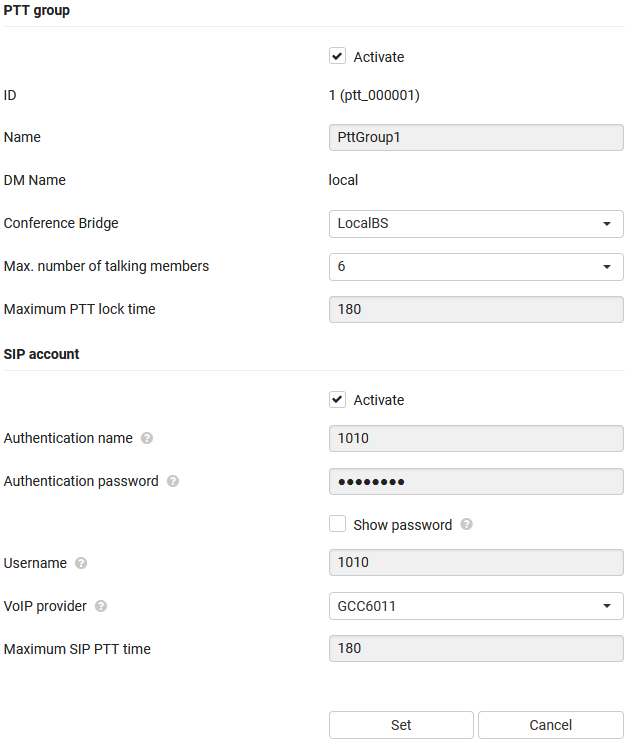
| Parameter | Description |
|---|---|
| PTT group | |
| Activate | Enable/disable the PTT group |
| ID | The internal ID |
| Name | The name of the PTT group |
| DM Name | The name of the DECT manager that hosts the conference bridge for the PTT group |
| Conference Bridge | The DECT base station hat hosts the conference bridge |
| Max. number of talking members | The maximum number of simultaneous DECT calls for this group |
| Maximum PTT lock time | A PTT user can via the handset/headset PTT lock feature talk to group members without holding down the PTT button. To avoid that these users keep the group occupied continuous a maximum timer should be able to configure. When this timer has passed, the user who has the PTT lock activated will be switched to listen mode. |
| SIP account | |
| Authentication name | The PTT group SIP account authentication name |
| Authentication password | The PTT group SIP account authentication password |
| Username | The PTT group SIP account username |
| VoIP provider | The VoIP provider used for this SIP account |
| Maximum SIP PTT time | The SIP call will be automatically ended after the timer |
Resources
CrewPTT groups require resources on the base station.
We have created a tool that can be used to calculate the required resources.
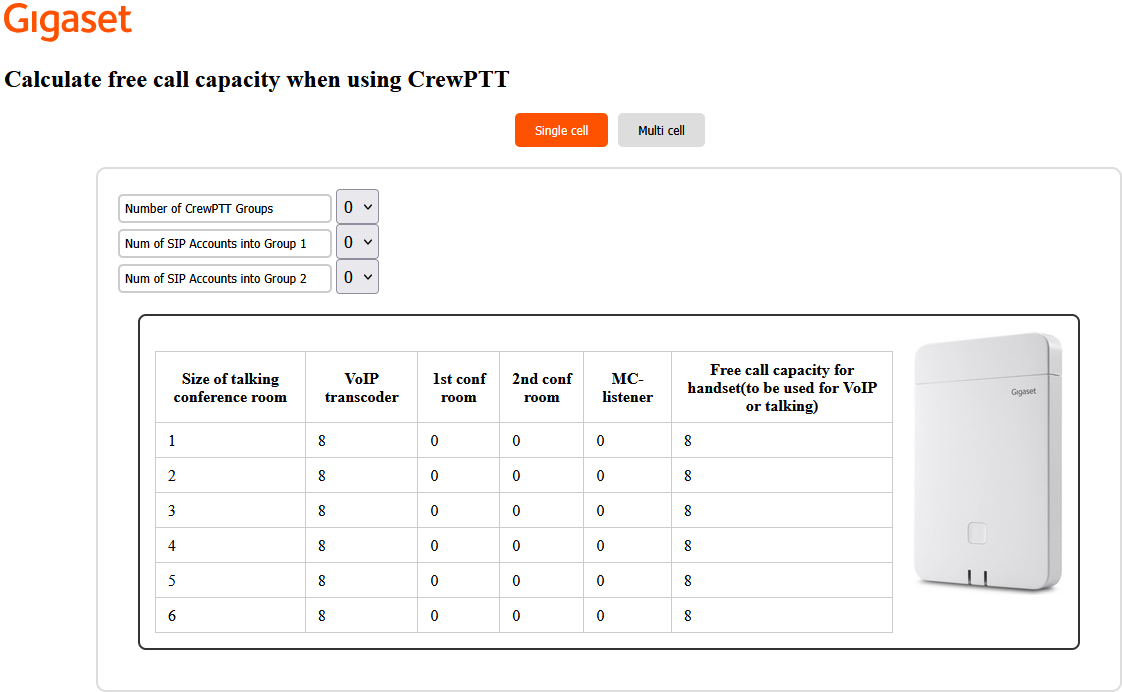
Base stations under the same DECT manager can handle maximum 2 CrewPTT groups.
A Base station must be selected that acts as the conference bridge for a CrewPTT group.
Enabling CrewPTT or using a Base station as Conference bridge takes resources, therefore the tool to calculate the free call capacity.

Example: All-in-one system example, one floor - max 2 groups.
- All-in-one system can handle maximum 2 CrewPTT groups
- For each group a DECT base must be assigned as Conference bridge
Example: All-in-one system example, multiple floors - max 2 groups
- All-in-one system can handle maximum 2 CrewPTT groups
- For each group a DECT base must be assigned as Conference bridge
- To cover the 2e floor an additional DECT base is added, also coverage from DECT base floor 1
Example: More then 2 groups are required
- Install a second all-in-one system
- First system handles CrewPTT group 1-2
- Second system handles CrewPTT group 3-4
- Also the DECT bases must be installed for the 2e all-in-one system
- Handsets and headsets that belong to group 1-2 are registered to 1th system
- Handsets and headsets that belong to group 3-4 are registered to 2e system
- Telephony between the systems are done via the SIP platform
- There is no handover and roaming between the systems
It can not be one Integrator systems as:
- Handsets and headsets should not roam to other DM as the CrewPTT groups are DM dependent.
- Roaming in an integrator system can't be blocked !!!
Example: Integrator system example
- 2 TeamCOM groups per DECT manager is supported
- Group 1-2 only available at DM A
- Group 3-4 only available at DM B
- Handset or headset can roam to other DM
- If assigned, the handset or headset can switch to group of other DM
If there is an DM overlap, handsets or headsets switch automatically between DM's and with this leave the joined TeamCOM group.
Therefore using more then 2 groups, there should not be an overlap between DM A and DM B DECT area's.
DECT handset/headset configuration
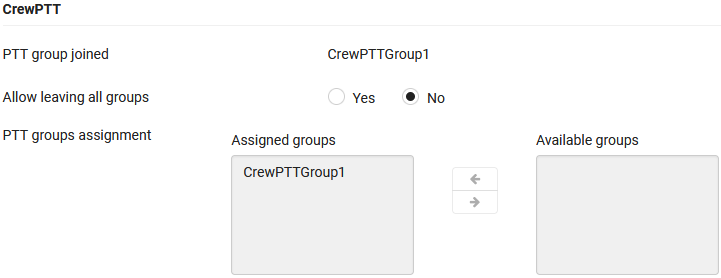
After registering the DECT handsets and Headsets, you need to configure the CrewPTT settings.
Go to: SETTINGS - Mobile devices - Administration - Select your handset/headset.
| Parameter | Description |
|---|---|
| PTT group joined | Shows the Joined PTT group |
| Allow leaving all groups | Offers the possibility to select "No group". If the optional "No group" is selected, the user can switch to this group and will not be disturbed by any CrewPTT group. |
| PTT groups assignment | Assigned groups: The CrewPTT group that the handset can join Available groups: The list with available CrewPTT groups |
3. DECT handset Push-to-talk
The following DECT handsets can be used as PTT device:
- S700H PRO software ...
- R700H PRO software ...
- SL800H PRO software ...
- R700H Protect PRO software ...
Open the handset menu and go to: Additional Features - Push to talk

| Parameter | Description |
|---|---|
| Activation | Enabled: The handset is member of the assigned CrewPTT group Disabled: The device can not join/listen to a CrewPTT group |
| Confirmation tone | Enabled: A confirmation tone is played when the handset switches to "Listening" mode Disabled: If in the PTT group a conversation is started, there is no confirmation tone played |
| Vibration | Enabled: Vibration is played when the handset switches to "Listening" mode Disabled: If in the PTT group a conversation is started, there is no vibration is played |
| Assigned PTT group name | Shows the name of the current assigned CrewPTT group Click Change to open the menu with available CrewPTT groups for this user. Select the group you want to join. If the optional "No group" is selected, the user can switch to this group and will not be disturbed by any CrewPTT conversation. |
Join PTT group
How to join a PTT group:
- In the Push to talk settings menu, enable Activation to Join the selected PTT Group
- The soft-key "Join" is available
- Click "Join" to join the PTT group
- The soft-key will be changed to "Leave"
- Click "Leave" to leave the PTT group
When you Joined the PTT group, you will see:
- PTT group name
- Icon
Listening mode
When a PTT call is started, the handset that joined the group will play the audio via the:
- Handset
- Headset if connected
On the display you will see.
- Headline: PTT Listening
- Icon indicating listening mode
- PTT Group name
If confirmation tone and/or vibration is enabled. When the first announcement in the PTT group is started, the handset will play one-time, the confirmation tone/vibration |
In the Listening mode, the Soft-key Options offers the possibility to:
- Talk lock feature
- Leave the PTT Group
- Open the PTT Group Settings menu
Press the End key to temporarily leave the PTT Group, to for example start a SIP call.
You will not listen to existing PTT group conversations. You will automatic be switched back to listening mode when a Group member that was in listening mode starts talking in that group.
Pressing the End key has no influence on the other PTT group members.
Initiate a Push-to-talk call
You can start a Push-to-talk call using the configured Soft-key.
- Long press on the Soft-key - More Functions... - Talk
The handset will switch to PTT Talking mode.
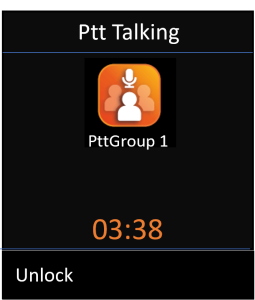
- Headline: Ptt Talking
- Icon
- PTT group name
- Group talk timer
- Release the Talk key when you finish speaking
PTT Lock
The PTT Lock will allow you to talk to other PTT members without holding the Soft-key Talk.
How to Activate:
Press the soft-key Options when the handset is in Listening mode, then select Lock.
How to end:
Press the soft-key Unlock or automatic after maximum lock timer has finished (3 minutes)
The handset will return to Listening state
Leave PTT Group
How to leave a PTT group:
Via the Push to talk settings menu:
- In the Push to talk settings menu, disable Activation to leave all PTT Groups
Handset Joined the PTT functionality and is in IDLE mode.
- Press the Soft-key Leave to Leave the PTT group
Charging Cradle
If the DECT handset is on the Charging Cradle and an PTT call is started, the handset will join the PTT group and play the audio.
If you take the handset from the charger, the PTT call will not be disconnected.
If the DECT handset is in a PTT call and the handset is placed on the charger, the PTT call is not disconnected.
Switch between PTT groups
he system supports up to 2 PTT Groups per DECT manager.
Both groups needs to be configured to be able to switch between the groups.
How to switch between the Groups.
Handset in Idle state:
On the DECT handset open the Menu - Push to talk - select the PTT group
Handset in PTT Listening state:
Press the soft-key Options when the handset is in Listening mode, then select Switch group.
4. DECT headset Push-to-talk
The following DECT headsets can be used as PTT device:
- Gigaset CH41D
- Gigaset CH21D
Gigaset CH41D
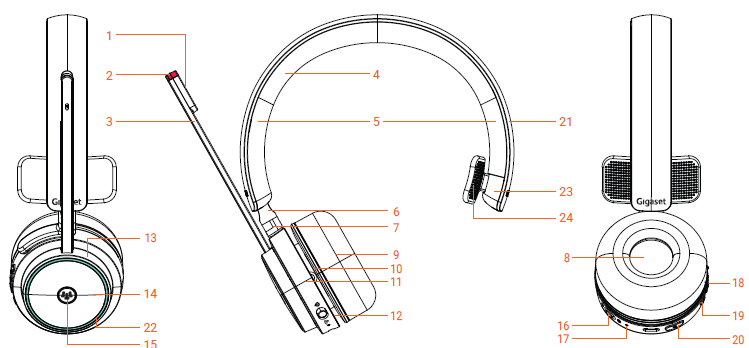
- Microphone cover
- Microphone indicator
- Microphone boom
- Headset rubber pad
- Headband bottom cabinet
- Slider
- Linkage
- Speaker Cover
- Earpad Cushion
- Earpad
- Outer housing
- Inner housing
- Ring
- Earcup cover
- Talk / Off key
- Power/DECT key
- Light guide
- Volume key
- Hard key
- Mute key
- Headband top cabinet
- Earcup light guide
- Head Holder cover
- Head Holder
Gigaset CH21D
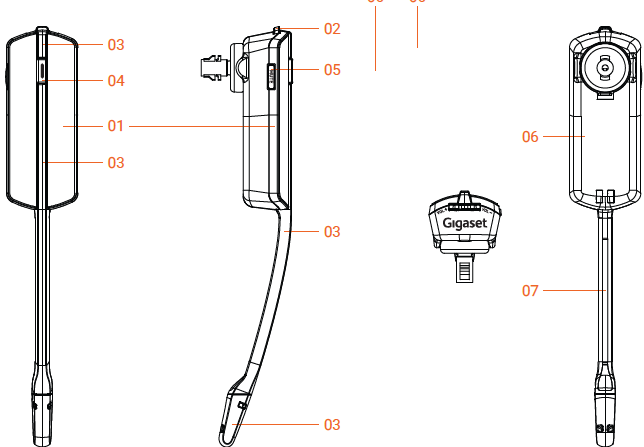
- Top Housing
- Volume Key
- Microphone boom
- Power Key
- Power Key LED
- Mute Key
- Back Housing
- Mic Boom Rubber Part
Headset On/Off
The headset can be switched on/off via the on/off switch.
If the headset is configured as CrewPTT user, the headset will be assigned to the first CrewPTT group of the connected DECT Manager.
The following audio prompts are supported:
- ON+connected: "Connected"
- ON+not connected: "No connection"
- ON + no CrewPTT group: "No group"
Busy Light indication: Discussed with Bas, using the Busylight could be to intrusive, possible the other LED can be used.
Push-to-talk configuration
The configuration of the DECT headset is done via the DECT system web-interface
Join PTT group
The headset is part of the configured PTT group, done via the DECT system web-interface
The headset will automatically join the last joined PTT group or the first PTT group in case the headset never joined a group before.
When another group member starts a PTT call, your headset will automatic join this group
LED blinking 100ms(On), 4900ms(Off)
Un-join all PTT Groups
If the administrator has assigned the PTT group "No group" the user can switch to this group and will then not be part of any PTT group but still can receive SIP calls
Listening mode
When a PTT call is initiated, the headset that is member of the group will play the audio.
The headset is Muted.
Press and hold the Hook button, you will hear a BEEP and then you can talk to other participants.
LED blinking 100ms(On), 4900ms(Off)
Initiate a Push-to-talk call
Press and hold the Hook button, you will hear a BEEP (the beep is played by FP, when FP thinks, that most handsets are ready for listening) and then you can talk to other participants. The Busy light ring indicated the talking via RED LED.
Release the Hook button when you finish speaking, the other PTT group members can't hear you any-more.
There is no time limited when manually pressing the Hook button, that the conversation is automatically ended.
When there are no resources available to talk, then the user will be notified via an audio indication.
PTT Lock
Press the Hook button multiple time (during start of the call) to enter the Lock state. Multiple time press when the call is already started, will not start the lock state.
The Lock will allow you to talk to other PTT members without holding the Hook button.
An audio prompt will be played "Lock"
If you are already in Talking state by pressing the Hook button. Press Hook multiple time to enter the Lock state. |
LED blinks 500ms(On), 1500ms(Off)
How to end:
Press the Hook button or automatic after maximum lock timer has finished (3 minutes), via provisioning this timer can be changed
An tone will be played to indicate the user the lock state is ended
The headset will return to Listening state
Face-to-face mode (Mute of the Speaker)
The Face-to-face mode allows you to talk to a person without being disturbed by PTT calls.
Long Press the F2F/Mute button.
An audio prompt will be played "Muted".
The user is informed every 5 minutes with an audio prompt "Muted"
How to end the face-to-face mode:
Press the F2F/Mute button
An audio prompt will be played "Unmuted"
No LED indication
Switch between PTT groups
Short press: group name check
An audio prompt will be played "Group ...".
Short press "again" within 3 sec after previous short press → selects next group with wrap around;
You can only switch between groups if the headset is in IDLE state.
Headset On / Off
Set the switch to On/Off position.
 Headset On
 Headset Off
Incoming SIP call
LED blinks 200ms(On), 800ms(Off)
Short press hook key: accepts incoming call
Press again to disconnect the call
If the Face-to-Face mode is activated, on incoming SIP call is signaled normally.
In charger
Speaker will be Off, no call indication.
DECT connection is available (SUOTA)
Blue LED:
- <10% - 0,2Hz,
- <50% 0,4 Hz;
- <99% 1 Hz
- Off when fully charged
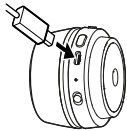
Off charger
Headset will try to connect to selected Group
Blue LED:
- for battery <10%: blinks: 100ms(On), 900ms(Off)
- for battery "battery warning": blinks: 100ms(On), 300ms(Off)
Factory reset
Hold: (Mute + P2T + Softkey) then power on
DECT registration
Set the Power/DECT switch for 3 seconds on the DECT position
Status LED blinks Blue and Busy LED Red
DECT registration is active for 5 minutes

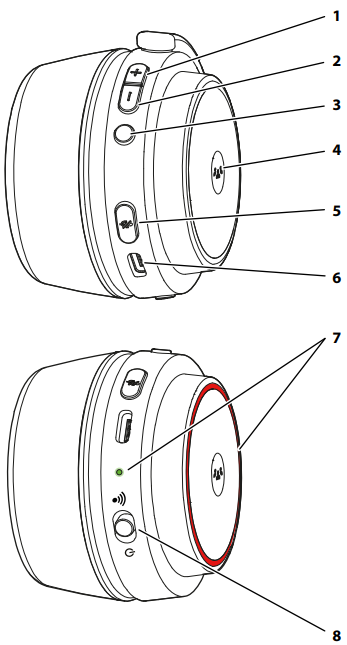
- Volume up
- Volume down
- Function key - switch group
- Push-to-talk key
- Mute
- USB-C (Charging)
- Status LED
-
 Headset: On - Battery: High
  No DECT connection
 Low battery (fast blinking) or charging
 Active call
 DECT registration active
 Firmware update
 Factory reset ongoing
-
5. Push-to-talk SIP account
Each PTT Group has it's own SIP account. This SIP account can be used by non PTT group users to be able to speak and listen to the PTT Group.
This SIP account can only receive calls.
An incoming SIP call will automatic be answered.
Incoming SIP call, PTT group is not started.
An incoming SIP call will initiate a PTT call, all members can hear the caller.
To be able to talk back, the PTT member needs to initiate a PTT call.
When already members are speaking, the SIP caller can hear the messages.
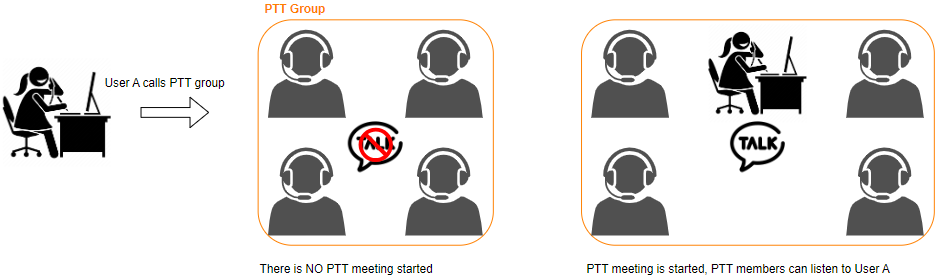
Incoming SIP call, PTT group is already started.
The SIP caller can hear the messages and talk back.

6. SIP Calls
- Each DECT handset and/or DECT headset have an own SIP account
- SIP Calls always have higher priority then PTT Calls
User is in a PTT call and receives an SIP call
If the user is in a PTT call and his SIP account is called, the PTT call will be interrupted and the SIP call is signalised. (Call waiting when in talking state)
The user can accept the SIP call.
When the SIP call is ended, the user will rejoin the PTT call in case the call is still active.
If the PTT call has ended, the device will return to IDLE state.
User is in a SIP call and receives an PTT call
If the user is in a SIP call and he receives an PTT call, this is not signalised to the SIP call participants.
The user stays in the SIP call and has no information that the PTT call is started.
When the SIP call is ended, the user will rejoin the PTT call in case the call is still active.
If the PTT call has ended, the device will return to IDLE state.
User is in a PTT call and wants to start an outgoing SIP call
If the user is in a PTT call and he wants to start a SIP call.
Press the End key to temporarily leave the PTT Group.
You will not listen to existing PTT group conversations. You will automatic be switched back to listening mode when a Group member that was in listening mode starts talking in that group.
User is in dialling state, phone-book access or has a handset menu open
Only if device = DECT handset
If the user is not in IDLE state but for example, starting to dial a number, searches for a phone number or has a handset menu open.
The user receives an PTT call, this is not signalised to the user.
When the handset goes to IDLE mode, the user will rejoin the PTT call in case the call is still active.
If the PTT call has ended, the device will stay in IDLE state.
PTT Group unavailable
If a user wants to initiate a PTT call, in the following failure cases an audio prompt will be played "Group unavailable"
- The device can not connect to a DECT base that Broadcasts the PTT group
- The PTT group is not active for example:
- Master DECT base is not selected or offline
- The device leaves the DECT bases that Broadcasts the PTT group
All DECT channels busy
If a user wants to initiate a PTT call, in the following failure case an audio prompt will be played "No channels available"
The user initiates an PTT call but there are no DECT channels available
Maximum simultaneous calls
If a user wants to initiate a PTT call, in the following failure case an audio prompt will be played "Maximum simultaneous calls"
The maximum simultaneous calls for the Group setting is "3" and the fourth user initiates a PTT call.
8. Auto-provisioning
Add PTT Group
<?xml version="1.0" encoding="UTF-8"?>
<settings productID="e2" version="1.0">
    <oper name="add_ptt_group" value="ptt_000001">
	    <param name="PttGroup.DmId" value="local"/>
	    <param name="SipAccount.AuthName" value="secret-name"/>
	    <param name="SipAccount.AuthPassword" value="secret-password"/>
	    <param name="SipAccount.ProviderId" value="1"/>
	    <param name="SipAccount.Active" value="1"/>
	</oper>
</settings> |
Delete PTT Group
<?xml version="1.0" encoding="UTF-8"?>
<settings productID="e2" version="1.0">
    <oper name="delete_ptt_group" value="ptt_000001" />
</settings> |
Assign PTT groups to handset
<?xml version="1.0" encoding="UTF-8"?> <settings productID="e2" version="1.0"> <oper name="assign_ptt_groups_to_handset" value="028bac19c8"> <param name="PttGroup" value="ptt_000001, ptt_000002"/> </oper> </settings> |
Assign handsets
<?xml version="1.0" encoding="UTF-8"?>
<settings productID="e2" version="1.0">
    <!--HS1 -->
    <oper name="assign_ptt_groups_to_handset" value="03bf86b7ed">
        <param name="PttGroup" value="ptt_000004"/>
    </oper>
     <oper name="join_ptt_group">
        <param name="Ipui" value="03bf86b7ed"/>
        <param name="PttGroup" value="ptt_000004"/>
    </oper>
    <!--HS2 -->
    <oper name="assign_ptt_groups_to_handset" value="03bf8460ed">
        <param name="PttGroup" value="ptt_000004"/>
    </oper>
     <oper name="join_ptt_group">
        <param name="Ipui" value="03bf8460ed"/>
        <param name="PttGroup" value="ptt_000004"/>
    </oper>
    <!--HS3 -->
     <oper name="assign_ptt_groups_to_handset" value="03bf8460ca">
        <param name="PttGroup" value="ptt_000004"/>
    </oper>
     <oper name="join_ptt_group">
        <param name="Ipui" value="03bf8460ca"/>
        <param name="PttGroup" value="ptt_000004"/>
    </oper>
    <!--HS4 -->
     <oper name="assign_ptt_groups_to_handset" value="03bf86b7ab">
        <param name="PttGroup" value="ptt_000004"/>
    </oper>
     <oper name="join_ptt_group">
        <param name="Ipui" value="03bf86b7ab"/>
        <param name="PttGroup" value="ptt_000004"/>
    </oper>
    <!--HS5 -->
     <oper name="assign_ptt_groups_to_handset" value="035edb3537">
        <param name="PttGroup" value="ptt_000004"/>
    </oper>
     <oper name="join_ptt_group">
        <param name="Ipui" value="035edb3537"/>
        <param name="PttGroup" value="ptt_000004"/>
    </oper>
</settings> |
Remove handsets
<?xml version="1.0" encoding="UTF-8"?>
<settings productID="e2" version="1.0">
    <!--HS1 -->
    <oper name="assign_ptt_groups_to_handset" value="03bf86b7ed">
        <param name="PttGroup" value=""/>
    </oper>

    <!--HS2 -->
    <oper name="assign_ptt_groups_to_handset" value="03bf8460ed">
        <param name="PttGroup" value=""/>
    </oper>

    <!--HS3 -->
     <oper name="assign_ptt_groups_to_handset" value="03bf8460ca">
        <param name="PttGroup" value=""/>
    </oper>

    <!--HS4 -->
     <oper name="assign_ptt_groups_to_handset" value="03bf86b7ab">
        <param name="PttGroup" value=""/>
    </oper>

    <!--HS5 -->
     <oper name="assign_ptt_groups_to_handset" value="035edb3537">
        <param name="PttGroup" value=""/>
    </oper>
</settings> |