Overview
Gigaset deskphones include the ability to build secure VoIP-Infrastructures via the OpenVPN Technology. Gigaset decided to use OpenVPN because it is compatible with SSL/RSA Certificates and X509 PKI, NAT, DHCP, and TUN/TAP virtual devices. OpenVPN is Open Source and is licensed under the GPL.
This article explains the step-by-step implementation of OpenVPN on Gigaset desktop phones, including server installation and setup, creating the phone configuration and applying it on the phone.
Install and configure the OpenVPN server
The OpenVPN server is available for free and there are various guides available on installing and configuring it. This section contains one out of several methods to install and set up a minimal OpenVPN server on Linux and Windows. For more options and detailed information, see https://openvpn.net or the available documentation for your server.
Install and configure OpenVPN on the Gigaset desktop phones
Install the VPN patch
The VPN feature is not shipped with the default firmware due to security considerations. Gigaset provides the VPN feature in a small firmware patch which needs to be installed. This patch contains only the VPN feature and thus is very small in size.
To install the VPN feature patch follow one of the following procedures:
Manual Installation
- Find out your currently installed firmware version.
- Open the Firmware page and click on your device
- Select the software version of your device
- Scroll down to "VPN Feature Update"
- Copy the download link
- Open the phone web user interface and go to: Setup - Software Update - Manual Software update
- Paste the link in the "Manual Software Update" field and click "Load"
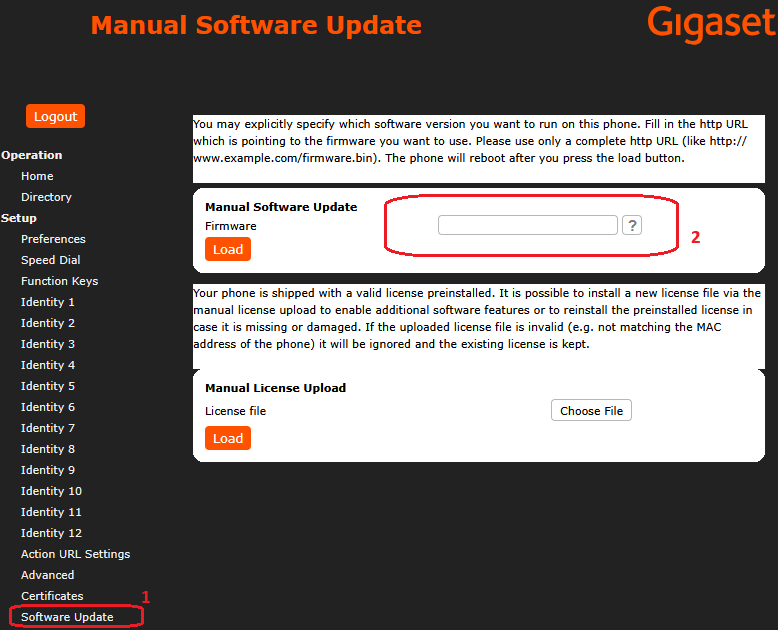
The phone will reboot and install the patch. Afterwards you will be able to use the VPN feature
Automatic installation via GRAPE
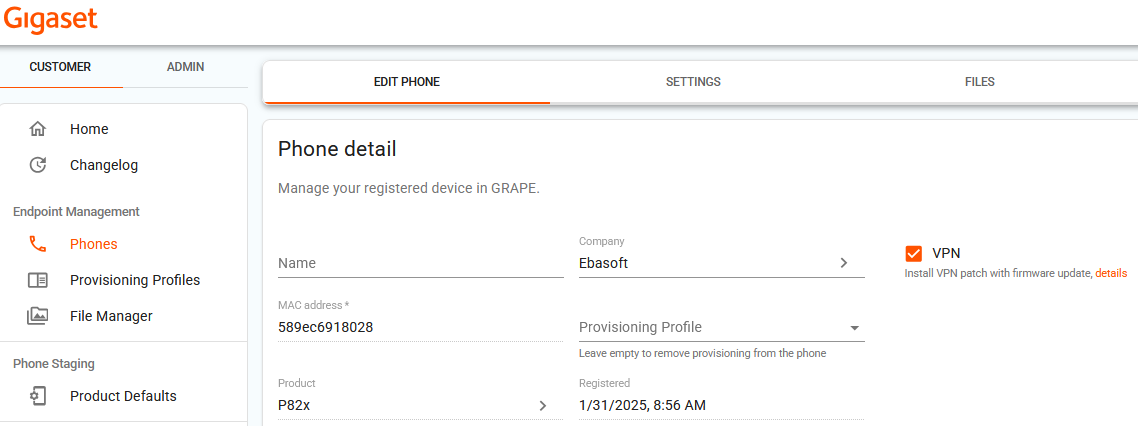
It is also possible to install the VPN patch automatically via GRAPE, as part of the provisioning or even prior to the settings being fetched by the phone.
- Open the GRAPE Phones page
- Enable VPN
- The next time the device connects to GRAPE, the VPN patch will be installed
How to tell if the VPN patch installation was successful
If the VPN installation was successful, the VPN feature will be available. Here is now you can check that the VPN feature is available:
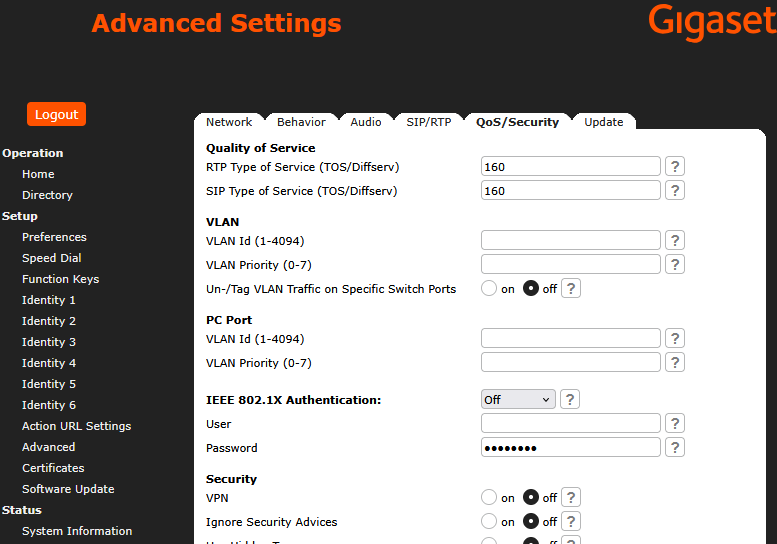
- The VPN option is now visible in the Phone's Web Interface under Advanced → QoS/Security. If the VPN patch installation was successful, you should see here the VPN setting (it will be set to off at first because the VPN feature was installed, but it is not yet enabled)
- The VPN line is now added to the System Info screen in the Phone Menu. Open the "Settings" menu by pressing the phone button with the gear symbol, then navigate to "Information" and select "System Info".
You should see the VPN line (it will show VPN off at first because the VPN feature was installed, but is not yet enabled)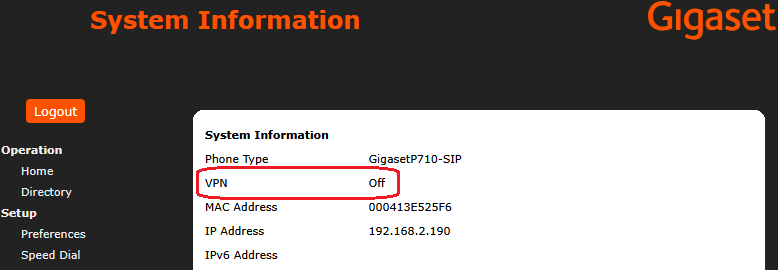
Create the VPN configuration tarball for the phone on Linux
Create client/phone configuration file
The content of the configuration file is usually the same on all clients/phones. To avoid having to configure both files, client and server, in one directory, create a subfolder called client-config:
# mkdir /etc/openvpn/client-configThe configuration file for the phone must be called vpn.cnf:
# touch /etc/openvpn/client-config/vpn.cnfEdit this file with your favorite editor:
# vim /etc/openvpn/client-config/vpn.cnfPaste the following content into the file, but remember to set the value for remote to your server's IP or FQDN by replacing <Server-IP/-name> below:
clientdev tunproto udpremote <Server-IP/-name>1194resolv-retry infinitenobindpersist-keypersist-tunca /openvpn/ca.crtcert /openvpn/client.crtkey /openvpn/client.keyremote-cert-tls serverping10ping-restart60
The phone configuration requires some naming that is mandatory and should not be changed:
- All file paths in your config file must be set to /openvpn/filename
- The configuration filen must be named vpn.cnf
Put together the configuration files for the phone
For this example we are using the same MAC we used to create the client certificate.
Create a temporary directory to hold the needed files:
# mkdir /etc/openvpn/client-config/tmpPut together the files in a tarball:
# cp /etc/openvpn/client-config/vpn.cnf /etc/openvpn/client-config/tmp/ #the configuration file# cp /etc/openvpn/easy-rsa/keys/000413A30591.crt /etc/openvpn/client-config/tmp/client.crt #the client certificate# cp /etc/openvpn/easy-rsa/keys/000413A30591.key /etc/openvpn/client-config/tmp/client.key #the clientprivatekey# cp /etc/openvpn/easy-rsa/keys/ca.crt /etc/openvpn/client-config/tmp/ca.crt #the CA# cd /etc/openvpn/client-config/tmp/# chown -Rf root:root *# chmod -R700*# tar cvpf vpnclient-000413A30591.tar * #thiscommand creates the actual tar file# rm client.* #remove the used certificate andprivatekey as they are no longer needed in the tmp directory
Now you should be able to find the tarball file vpnclient-000413A30591.tar inside the /etc/openvpn/client-config/tmp/ directory. We will use this file in the next step when providing it to the phone.
Create the VPN configuration tarball for the phone on Windows
Create client/phone configuration file
In the Command Prompt, create file vpn.cnf by running:
notepad C:\Program Files\OpenVPN\easy-rsa\keys\vpn.cnfWhen asked if you want to create a new file, click Yes. Copy and paste the following content into the file, but remember to set the value for remote to your server's IP or FQDN by replacing <Server-IP/-name> below:
clientdev tunproto udpremote <Server-IP/-name>1194resolv-retry infinitenobindpersist-keypersist-tunca /openvpn/ca.crtcert /openvpn/client.crtkey /openvpn/client.keyremote-cert-tls serverping10ping-restart60The phone configuration requires some naming that is mandatory and should not be changed:
- All file paths in your config file must be set to /openvpn/filename
- The configuration file must be named vpn.cnf
In older firmware versions (8.x), the ping and ping-restart options might cause issues. If your VPN connection is failing in older versions, remove these options and try again.
Save the file
vpn.cnf
Put together the configuration files for the phone
- Navigate in File Explorer to
C:\Program Files\OpenVPN\easy-rsa\keys\. Inside this folder, create a new folder called000413A30591 - Copy the following files from
C:\Program Files\OpenVPN\easy-rsa\keys\into the000413A30591folder:ca.crt000413A30591.crt000413A30591.keyvpn.cnf
- Now your folder
000413A30591should look like this: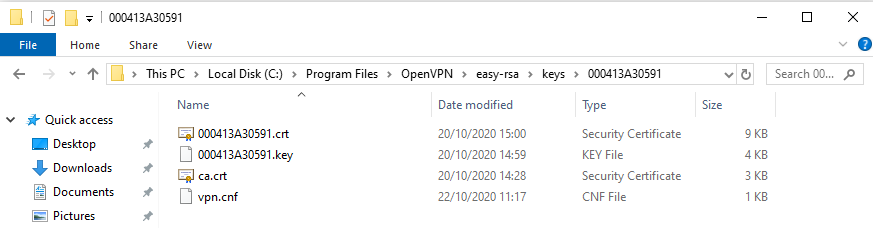
- Rename
000413A30591.crttoclient.crt - Rename
000413A30591.keytoclient.key - Now your folder
000413A30591should look like this:
In the command prompt, navigate to the new created directory by typing:
cd C:\Program Files\OpenVPN\easy-rsa\keys\000413A30591Now create the tarball archive by typing:
tar cvpf C:\vpnclient-000413A30591.tar *You should see the following:
C:\Program Files\OpenVPN\easy-rsa\keys\000413A30591>tarcvpf C:\vpnclient-000413A30591.tar*a client.crta client.keya ca.crta vpn.cnfNow you should be able to find the tarball file
vpnclient-000413A30591.tarunderC:\. We will use this file in the next step when providing it to the phone.
Structure reference for the configuration tarball
When creating the tar archive for Gigaset phones, it is very important to keep the file structure and naming as in the above examples.
Below is the content of the tar file created in this example, vpnclient-000413A30591.tar. Note that there are no subdirectories, the files must be placed in the root of the tarball:
ca.crt
client.crt
client.key
vpn.cnf
You can download this example file here: vpnclient-000413A30591.tar
Put the VPN configuration tarball on an HTTP server
This section also includes the download and set up of a minimal HTTP server using the SPLiT application. If you already have an HTTP server, you can just upload the tar file created in the previous section to your existing HTTP server and skip this section.
Setup an HTTP server on Windows
- Download the SPLiT executable file (for this example we used SPLiT-1.1.3_w32.exe)
- Create directory SPLiT in a location of your choice, for example C:\SPLiT
- Move SPLiT-1.1.3_w32.exe into the SPLiT directory
- Create a new directory called
httpinside the SPLiT directory - Move the tar file created in the previous section from C:\ to the
httpdirectory - Go back to the SPLiT directory
- Run the SPLiT executable SPLiT-1.1.3_w32.exe as Administrator
- Once the software has started you should see a user interface window:
- Click on the Debug check box
- Insert your computer IP address into the IP Address field
- Verify that the HTTP Directory fields contains the
httpvalue - Click on the Start HTTP Server button
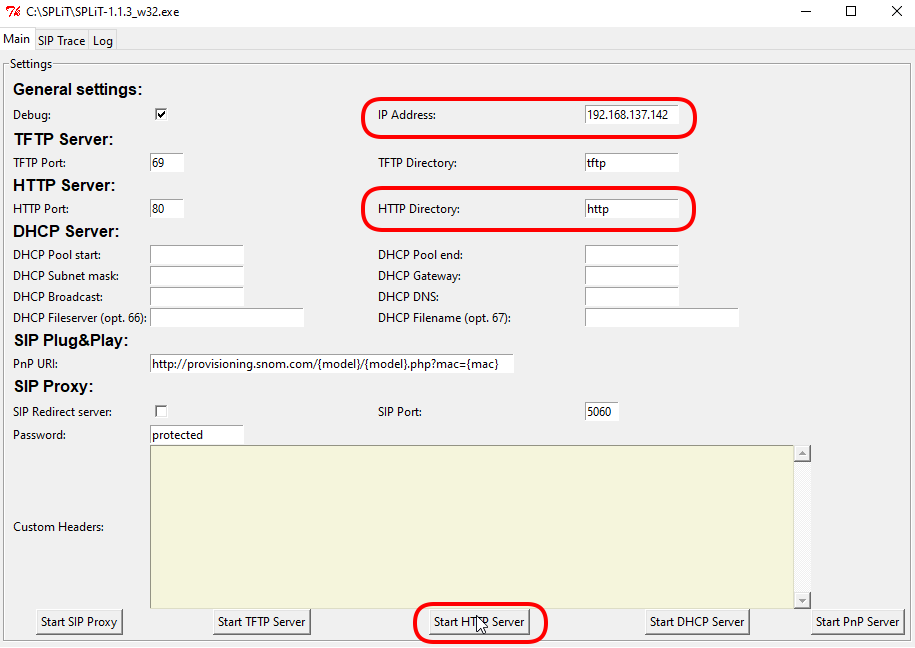
- Next, check that the link to the tarball file works correctly by opening a browser and accessing http://<Server-IP/name>/vpnclient-000413A30591.tar .
This should present you with the option to download the tarball file.
Setup an HTTP server on Linux
- Open a terminal
Install python if it is not already installed
# apt-get install pythonGet and start SPLiT:
# mkdir /usr/local/SPLiT# cd /usr/local/SPLiT# wget https://github.com/pbertera/SPLiT/archive/1.1.3.tar.gz# tar -xvzf1.1.3.tar.gz# cd SPLiT-1.1.3/# mkdir http# sudo python SPLiT.py -i <Server-IP/-name> --http #replace <Server-IP/-name> with your server's IP/HostnameNow that the HTTP server is running, place the tar file created on previous version in the http directory inside the SPLiT directory:
# cp /etc/openvpn/client-config/tmp/vpnclient-000413A30591.tar /usr/local/SPLiT/SPLiT-1.1.3/httpNext, check that the link to the tarball file works correctly by opening a browser and accessing http://<Server-IP/name>/vpnclient-000413A30591.tar .
This should present you with the option to download the tarball file.
Apply the VPN configuration to the Gigaset phone
- Make sure the phone's date and time is correct in order to be able to validate the certificates
- Under Advanced → QOS/Security, find the VPN Parameter:

- Enable the VPN parameter by clicking
on. The Unzipped VPN config tarball parameter will become available: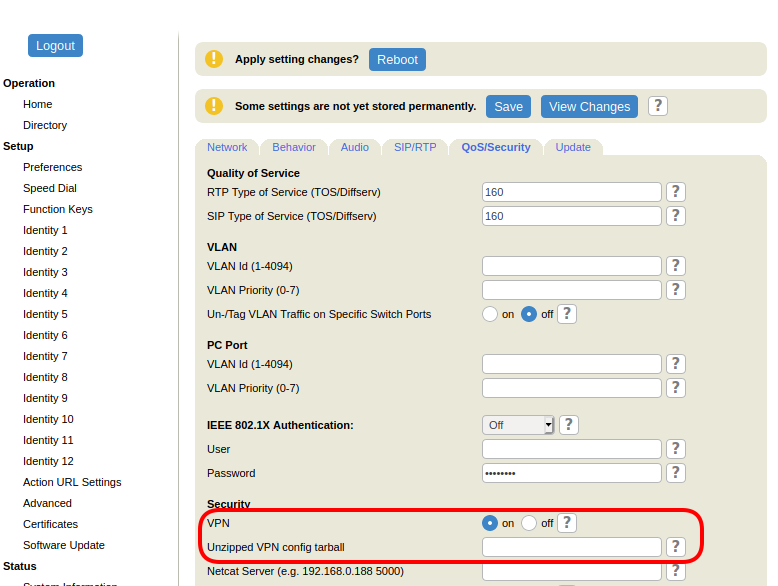
- Enter the HTTP(S)-URL of the tarball file e.g. http://<Server-IP/name>/vpnclient-000413A30591.tar with the openVPN configuration:
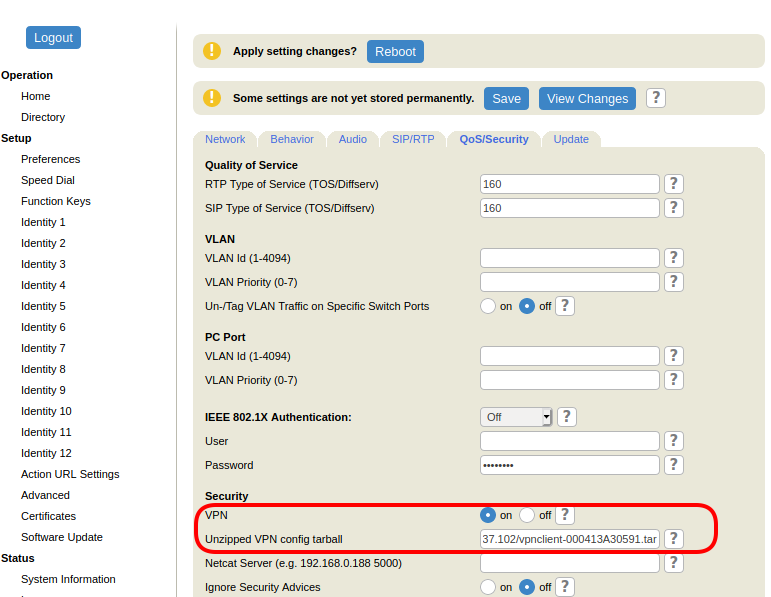
- Scroll down and click Apply
- In case the phone presents you with
Some settings are not yet stored permanently, click Save . If this text does not appear you can ignore this step. - Click Reboot
- After the reboot, the phone will show a notification VPN is active and display the VPN icon on the phone taskbar.
- Pressing the Info key will show: VPN is active
- After you have pressed the Info key and seen the Status Info, the "VPN is active" notification will disappear


Changing the VPN configuration tarball at a later time
The Unzipped VPN config tarball parameter is designed to be provisioned only once: every time this parameter is configured the phone downloads the tarball and then the setting gets emptied.
If you wish to change the phone's VPN configuration you have to configure the tarball URL again in order to make the phone download and apply the new configuration.
It is not necessary to give the tarball a new name, you can use the original name.
Adding another phone to the VPN at a later time
If you wish to set up a new phone in the VPN at a later time, you can use the following steps:
open command prompt and then run
vars
on Linux by using commands:cd /etc/openvpn/easy-rsa. ./vars
on Windows by using commands:cd"C:\Program Files\OpenVPN\easy-rsa"vars
- repeat step Create the phone certificate
- repeat step Create the VPN configuration tarball for the phone (you can skip the part where you create
vpn.cnfbecause this was already created and it is usually the same for all clients) - repeat step Put the VPN configuration tarball on an HTTP server
repeat step Apply the VPN configuration to the Gigaset phone
Advanced examples
Additional authentication with a username/password
In some cases the VPN server requires a username and password, in addition to the certificate. Here is how to configure up a VPN username/password for the Gigaset phone:
Add auth-user-pass to your vpn.cnf, like this (do not change the path):
auth-user-pass /openvpn/pass.txtCreate file pass.txt with the following content, replacing the text
usernameandpasswordwith your actual username and password.usernamepassword- When creating the configuration tarball (see step Create the VPN configuration tarball for the phone), also include file pass.txt to the tarball.
Make sure that the file pass.txt is in the same path of the tarball as the other configuration files.
Troubleshooting
Everything works as described, but the phone seems to reject my server certificate. What's wrong?
Make sure the phone has the right date and time. Try to configure an NTP server that the phone can reach on its native network (not via VPN). If the phone has a wrong date it might assume that all certificates are not valid (yet).
How to view the OpenVPN logs
You can set the phone to send all VPN logs to a "Netcat Server". To do this:
Install and run netcat on a host that is reachable to the phone:
netcat -l -p5000Set the IP address of this host under Advanced → Qos/security → Netcat Server:

Once you apply this and reboot tht phone, you will see the phone's VPN logs on the host running netcat. If you have not added a custom verbosity level in vpn.cnf, you should see the following (for a successfull connection):
Tue Oct2011:58:192020OpenVPN2.4.7arm-buildroot-linux-gnueabi [SSL (OpenSSL)] [LZO] [EPOLL] [MH/PKTINFO] [AEAD] built on Jul52019Tue Oct2011:58:192020library versions: OpenSSL1.0.2s28May2019, LZO2.10Tue Oct2011:58:192020TCP/UDP: Preserving recently used remote address: [AF_INET]192.168.137.102:1194Tue Oct2011:58:192020UDP link local: (not bound)Tue Oct2011:58:192020UDP link remote: [AF_INET]192.168.137.102:1194Tue Oct2011:58:192020[openvpntest.gigaset.de] Peer Connection Initiated with [AF_INET]192.168.137.102:1194Tue Oct2011:58:212020TUN/TAP device tun0 openedTue Oct2011:58:212020/sbin/ip link set dev tun0 up mtu1500Tue Oct2011:58:212020/sbin/ip addr add dev tun0 local10.8.0.6peer10.8.0.5Tue Oct2011:58:212020WARNING:thisconfiguration may cache passwords in memory -- use the auth-nocache option to preventthisTue Oct2011:58:212020Initialization Sequence Completed
What is my IP in the VPN?
The phone does not show the IP address received over VPN in the web interface per default, but there are some other ways to view this:
Option 1: from the SIP logs
Set up a test identity on the phone, with Registrar set to an IP address inside the VPN network. It does not matter what IP address it is, it just needs to be routed inside the VPN network. Set only the Account and the Registrar for this identity:
Then click on SIP Trace, you will see some SIP messages. Look at the IP address from which these were sent:
Sent to Udp:10.8.0.1:5060
          from Udp:10.8.0.6
        :55786 at Oct 19 23:54:43.886 (717 bytes):
REGISTER sip:10.8.0.1 SIP/2.0
Via: SIP/2.0/UDP 10.8.0.6:55786;branch=z9hG4bK-2yig1rmxrpir;rport
From: <sip:100@10.8.0.1>;tag=r06il7bz6r
To: <sip:100@10.8.0.1>.....
If your VPN network is routing packets correctly, you will see here the phone's IP address (in this example it is
10.8.0.6
)
Option 2: from the netcat logs
From the netcat logs (see above " How to view the OpenVPN logs "). If you have not added a custom verbose level in vpn.cnf, at the beginning of the connection, the netcat logs will also show the IP address that the phone receives.
Here is an example:
|